Dec 8, 2025
Exporting LinkedIn group members is one of the fastest ways to build a targeted lead list.
In this guide, you will learn:
How to find the right LinkedIn groups
How to join groups that match your audience
How to export members with emails using GiveMeLeads
How to identify real decision-makers inside any group
How to export more than 2500 leads without hitting limits
Let's start!
🎥 You prefer to watch a video? Here is the recap:
How To Export LinkedIn Group Members Step by Step
To export LinkedIn group members, we only need 4 steps:
Find the right LinkedIn groups where your audience is active
Join these groups to unlock the full member list
Load the group members inside LinkedIn Sales Navigator
Export the members with emails using GiveMeLeads
Step 1: Find relevant LinkedIn groups with the free LinkedIn search filters
Start by finding the groups where your ideal audience is active. You can do this with the free LinkedIn search bar.
In the search bar, type a keyword related to your niche.
For example: marketing, real estate, SaaS, HR, finance, or recruiting.

In the results page, click on the Groups tab.

You will now see a full list of groups that match your keyword.

Open the groups that look active. A good group usually has many members and recent posts.

Your goal here is simple: find groups where your prospects already spend time. Once you find them, you can join the group and move to the next step.
Step 2: Join the LinkedIn group
Once you find a relevant group, you need to join it to access the list of members.
For that, you just need to click on "Join".

💡 Pro tip: Some groups accept you instantly. Others need approval from an admin.
Once you are accepted, you can see the posts, conversations, and member list.
Joining the group is important because LinkedIn only shows the full member list to group members. Without joining, you cannot load the group inside Sales Navigator.
Step 3: Open the group inside LinkedIn Sales Navigator
After joining the group, you can load its members in LinkedIn Sales Navigator.
Follow these steps:
Go to Sales Navigator.
Click on the Lead Filters section.
Scroll down until you find the Group filter.
Type the name of the group you just joined.
Select the group, then apply the search.

Sales Navigator will now display all the members of that group, with additional filters you can use. This is the view you need before exporting the leads.
Step 4: Export the group members with emails using GiveMeLeads
Once the group members are loaded in Sales Navigator, you can export them in a few clicks with GiveMeLeads.
For that, you just need to go on GiveMeLeads.
You create your account and you install the GiveMeLeads chrome extension.
Then, you will have a button "Extract leads" on Sales Navigator.

Now, to export your list of leads from LinkedIn Sales Navigator, you just need to click on the button "Extract leads".
Then, you can select the number of leads you want to export and click on "Export leads"

When your export is finished, you’ll receive an email with a download link.

You can also download your file directly by clicking the "Download" button in your dashboard. You’ll see two options.

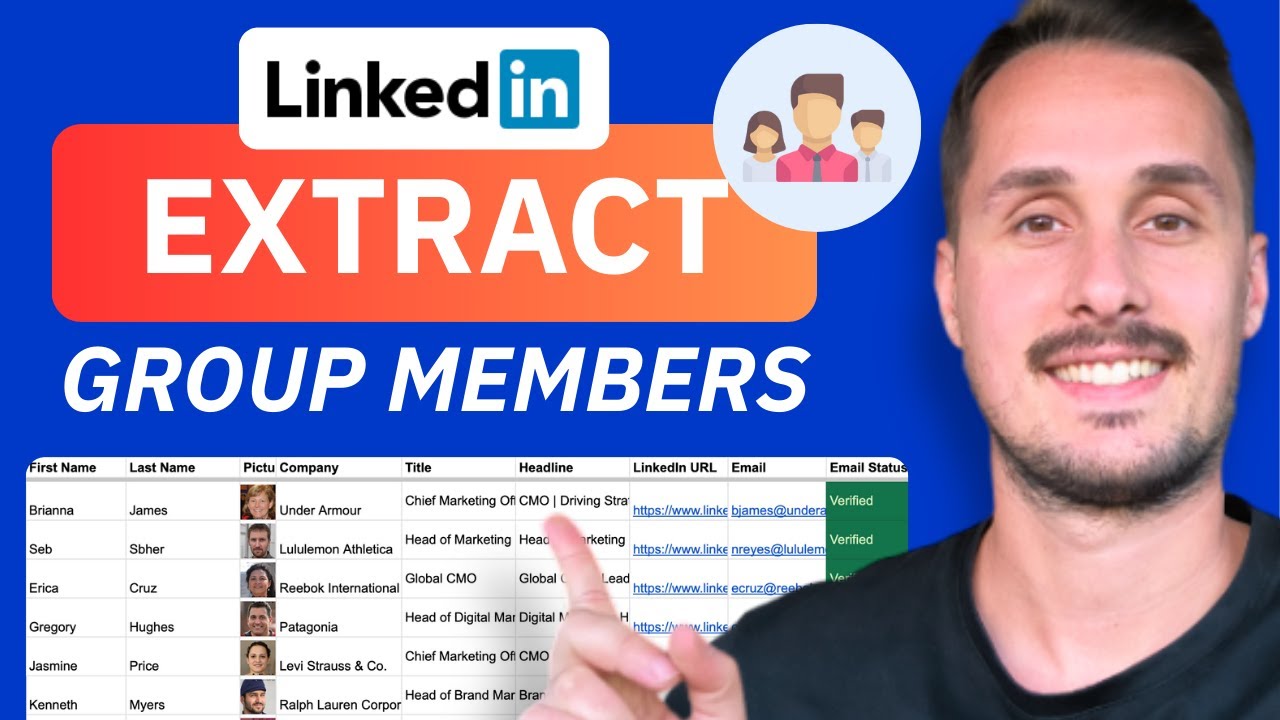
At the end, you will get a file like this one:

🎥 If you want to see a complete tutorial on how to export leads from LinkedIn Sales Navigator, you can check this video:

What Data Can You Export from LinkedIn Sales Navigator?
You can get 3 types of data you can get when your export group members from LinkedIn Sales Navigator.
Profile information
Company details
Verified emails
Let's dive in!
Profile Information
With GiveMeLeads, every export includes essential profile data:
Data | Example |
|---|---|
Source | Competitor's network |
Source Info | Marc Dupont |
First Name | Emily |
Last Name | Clark |
LinkedIn URL | https://www.linkedin.com/in/emilyclark |
LinkedIn ID | ACoAAAXyz123 |
emily@company.com | |
Email Status | Verified |
Job Title | VP of Sales |
Location | San Francisco Bay Area |
Profile Picture URL | https://media.licdn.com/pic.jpg |
Recent Posts Count | 3 |
Connection Degree | 2nd-degree |
Premium Profile | Yes |
Open Profile | Yes |
Headline | Driving growth at B2B SaaS companies |
Summary | 15 years in B2B sales & marketing |
# of Current Companies | 1 |
Duration in Company | 2 years 3 months |
Duration in Role | 1 year 6 months |
This information identifies each lead clearly.
Company details
GiveMeLeads goes beyond basic LinkedIn profile scraping.
It also pulls detailed company data for every lead, giving you both personal and business-level insights in a single export.
Data | Example |
|---|---|
Company Name | SaaSify |
Company LinkedIn ID | 12345678 |
Company Website | https://www.saasify.com |
Company Location | New York, NY |
Company Industry | Software Development |
Company Employee Count | 120 |
Company Size Range | 51-200 employees |
Company Type | Private |
Year Founded | 2016 |
Specialties | CRM, Automation, Lead Gen |
Company Description | We help B2B teams close more deals |
Verified emails
On LinkedIn, you can sometimes find a lead’s email by clicking on their Contact Info — but that only works if they’re a 1st-degree connection. And even then, most people don’t add their email to their profile.

So if you’re doing outreach at scale, you’ll need another solution.
With GiveMeLeads, you get the verified professional email of every lead — even if they’re in your 2nd or 3rd-degree connections.

💡 Pro tip: No need to use separate tools to find or verify emails. Everything’s already cleaned, verified, and ready to go.
How To Identify Decision-Makers Inside a LinkedIn Group
A LinkedIn group can have thousands of members, but not everyone is a good lead. Your goal is to find the people who make decisions: founders, executives, managers, and buyers.
The good news is that LinkedIn Sales Navigator gives you more than 30+ lead filters. You can combine these filters with the Group filter to get a list of high quality prospects.

Here are the best filters you can add on top of the LinkedIn group filter, with examples:
Filter | Example |
|---|---|
Current job title | Founder, CEO, Marketing Manager |
Company headcount | 1 to 10 employees or 51 to 200 employees |
Geography | France, United States, London |
These filters help you focus on the right people instead of wasting time on members who are not relevant.
🎥 If you want to get better results at targeting leads based on their job title, you can check this video:
How To Export More Than 2500 Group Members?
If the LinkedIn group has more than 2500 members, you will not be able to load all of them in one single Sales Navigator search. LinkedIn limits the number of results you can extract at once.

The solution to export more than 2500 leads on Sales Navigator is simple: split the group into smaller segments using filters.
Each segment gives you a new list of leads that you can export separately.
Here are the best filters to break down a large group:
Filter | What it does | Examples |
|---|---|---|
Seniority level | Splits members by role seniority | Entry, Manager, Director, VP, CXO |
Function | Targets specific departments | Marketing, Sales, Operations, HR, Finance |
Geography | Breaks the search by location | Country, region, or city segments |
Years of experience | Filters by career experience | 1 to 5 years, 6 to 10 years, 10 plus years |
Years in current company | Finds people based on how long they stayed in their company | Less than 1 year, 1 to 3 years, 3 plus years |
By combining these filters, you can create multiple smaller searches under 2500 leads.
Then you can export each one with GiveMeLeads and merge everything into a single clean list.

FAQ
How do I export group members from LinkedIn
LinkedIn does not offer a native export feature for group members. You cannot download a list directly from a group page.
But you can export the members with a simple workflow:
Join the LinkedIn group
Open the group inside LinkedIn Sales Navigator using the Group filter
Load all the members that appear in the search
Click on "Export leads" from GiveMeLeads
Start the export and download the CSV file
This gives you a clean list of group members with names, job titles, companies, and emails when available.
How do I see all members of a LinkedIn group
To see all members of a LinkedIn group, you must join the group first. LinkedIn only shows the full member list to group members.
Here is how to view them:
Open the group page
Click the Members tab
Scroll through the full list of people inside the group
If you want more filters and deeper data, you can also view the group in LinkedIn Sales Navigator using the Group filter.
Can I export LinkedIn groups for free
Not with LinkedIn alone. LinkedIn does not provide any free export button for groups.
Here is what you can do:
You can join the group for free
You can view its members for free
But you cannot download the member list without a third party tool
To export the members with emails, you need a tool like GiveMeLeads.